Note: Setup instructions below are for iPhone or iPod touch devices running software version 3.0.
To configure IMAP for your iPhone or iPod touch, just follow these steps:
- Make sure you've enabled IMAP in your main Gmail settings
- On your iPhone or iPod touch's home screen, tap Settings
- Tap Mail
- Tap Add Account...
- Tap Other
- Tap Add Mail Account
- Enter your account information, being sure to use your full Gmail address (or full Google Apps email address)
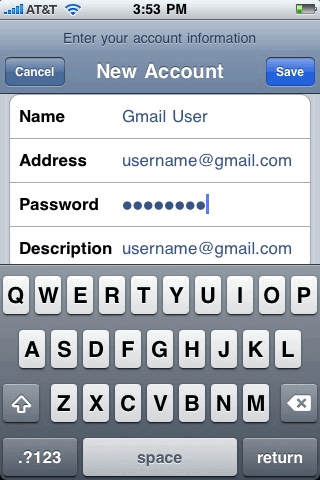
- Tap Save
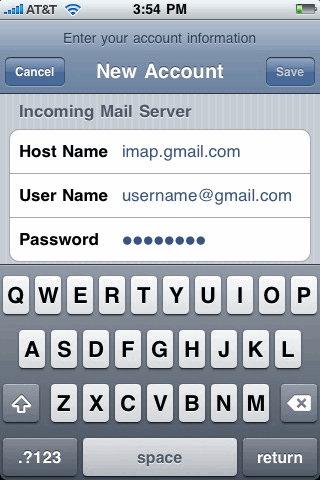
- For Incoming Mail Server:
- Host Name is 'imap.gmail.com'
- User Name is your full Gmail address, including '@gmail.com' (or full Google Apps email address)
- For Outgoing Mail Server:
- Host Name is 'smtp.gmail.com'
- User Name is your full Gmail address, including '@gmail.com' (or full Google Apps email address)
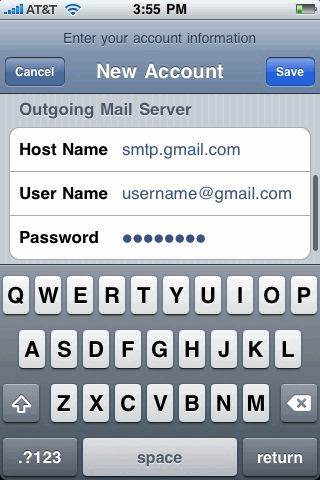
- Tap Save
And you're done. You can add additional Gmail accounts by repeating the same steps above.