To set up your Outlook Express client to work with Gmail:
-
- Enable POP in your email account. Don't forget to click Save Changes when you're done.
- Open Outlook or Outlook Express.
- Click the Tools menu, and select Accounts...
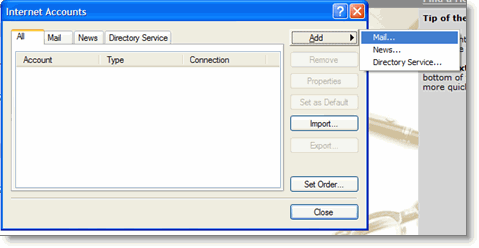
- Click Add, and then click Mail...
- Enter your name in the Display name: field, and click Next.
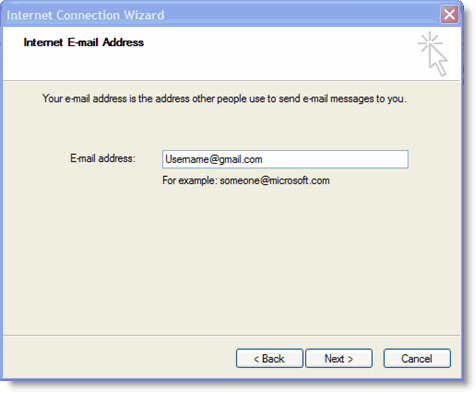
- Enter your full Gmail email address (username@gmail.com) in the Email address: field, and click Next. Google Apps users, enter your full address in the format 'username@your_domain.com.'
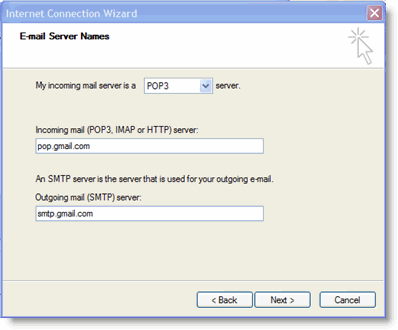
- Enter pop.gmail.com in the Incoming mail (POP3, IMAP or HTTP) server: field. Enter smtp.gmail.com in the Outgoing mail (SMTP) server: field. Google Apps users, enter the server names provided; don't add your domain name in this step.
- Click Next.
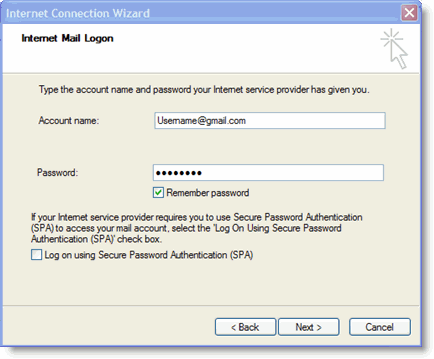
- Enter your full email address (including '@gmail.com' or '@your_domain.com') in the Account name: field. Enter your email password in the Password: field, and click Next.
- Click Finish.
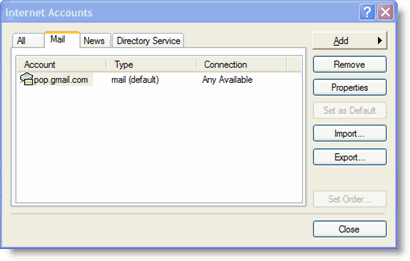
- Highlight pop.gmail.com under Account, and click Properties.
- Click the Advanced tab.
- Fill in the following information:*
- Check the box next to This server requires a secure connection (SSL) under Outgoing Mail (SMTP).
- Enter 465 in the Outgoing mail (SMTP): field.
- Under Outgoing Mail (SMTP), check the box next to This server requires a secure connection (SSL).
- Under Incoming mail (POP3), check the box next to This server requires a secure connection (SSL). The port will change to 995.
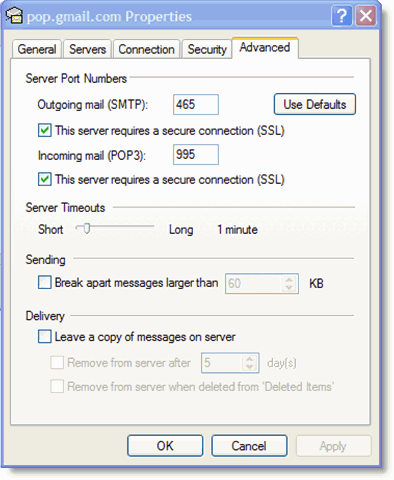
*The order of Outgoing and Incoming mail server fields varies by version. Make sure you enter the correct information in each field.
- Return to the Servers tab, and check the box next to My server requires authentication.
- Click OK.
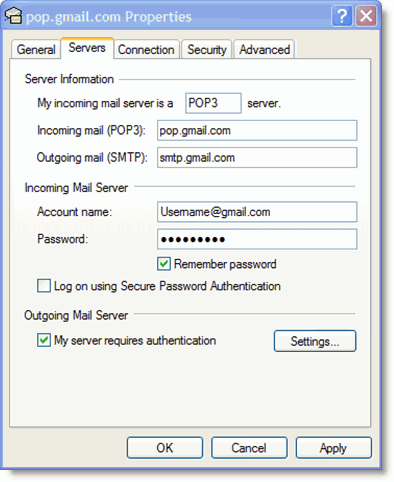
If POP isn't working properly for you, please ensure that your settings are identical to those listed below. Even small differences may prevent Gmail's POP service from functioning properly.
E-Mail Accounts tab
Your Name: (optional) E-mail address: (your Email address, including '@domain.com') User Name: (your Email address, including '@domain.com') Password: (your Email password) Remember password: (optional) Log on using Secure Password Authentication: disabled Incoming mail server (POP3): pop.gmail.com Outgoing mail server (SMTP): smtp.gmail.com Outgoing Server tab
My outgoing server (SMTP) requires authentication: enabled Use same settings as my incoming mail server: enabled Advanced tab
Incoming server (POP3): 995 This server requires a secure connection (SSL) enabled Outgoing server (SMTP): 465 or 25 This server requires a secure connection (SSL) enabled Server Timeouts (Greater than 1 minute, we recommend 5) Leave a copy of messages on the server disabled