To set up your Outlook 2007 client to work with Gmail:
- Open Outlook.
- For new setups, select Do not upgrade.
- Click Yes.
- Enter your display name, email address (including '@gmail.com'), and password. Google Apps users, enter your full email address, e.g. 'username@your_domain.com.'
- Select the 'Manually configure server settings or additional server types' checkbox.
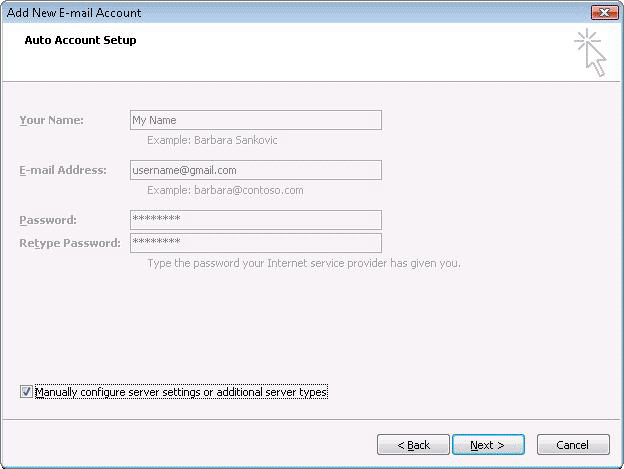
- Select Internet E-mail.
- Settings: name, full email address (including '@gmail.com' or '@your_domain.com')
- In the Account Type dropdown menu, select IMAP; enter the incoming and outgoing server names shown below.
- In the 'User Name' field, give your full Gmail address, including '@gmail.com' or '@your_domain.com.'
- After creating these settings, clicking Next takes you to the end of the setup.
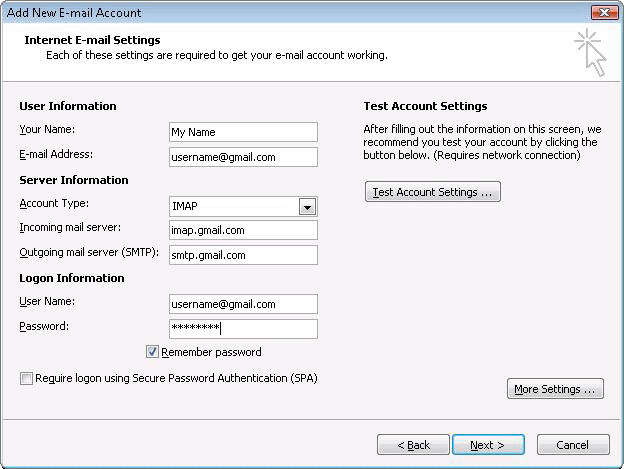
- In the Tools menu, select Options then Mail Setup. Under 'Email Accounts,' click E-mail Accounts.
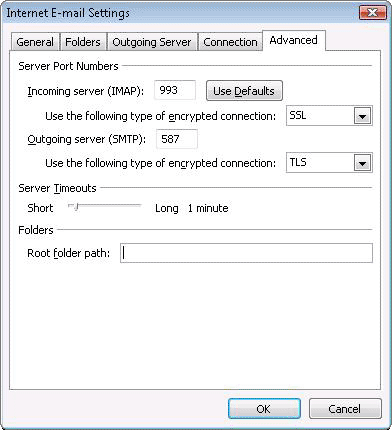
- Select an account, and click Change above the list of accounts. Click More Settings, then the Advanced tab.
- Incoming server must be 993, and must use SSL encryption.
- Outgoing server can use 587, TLS encryption.
- Click the Outgoing Server tab. Make sure that 'My outgoing server (SMTP) requires authentication' is selected. The radio button 'Use same settings as my incoming mail server' should also be selected.
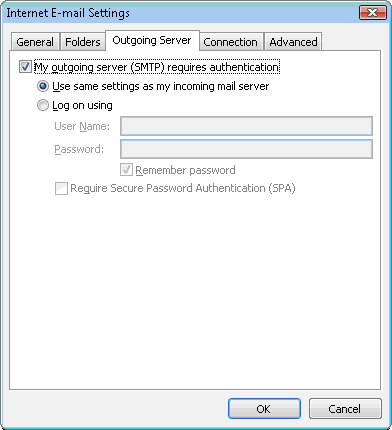
- Click OK > Next > Finish > Close > OK.